
Controls & Input Troubleshooting
An input-neutral isolation checklist for PC and supported gamepads.
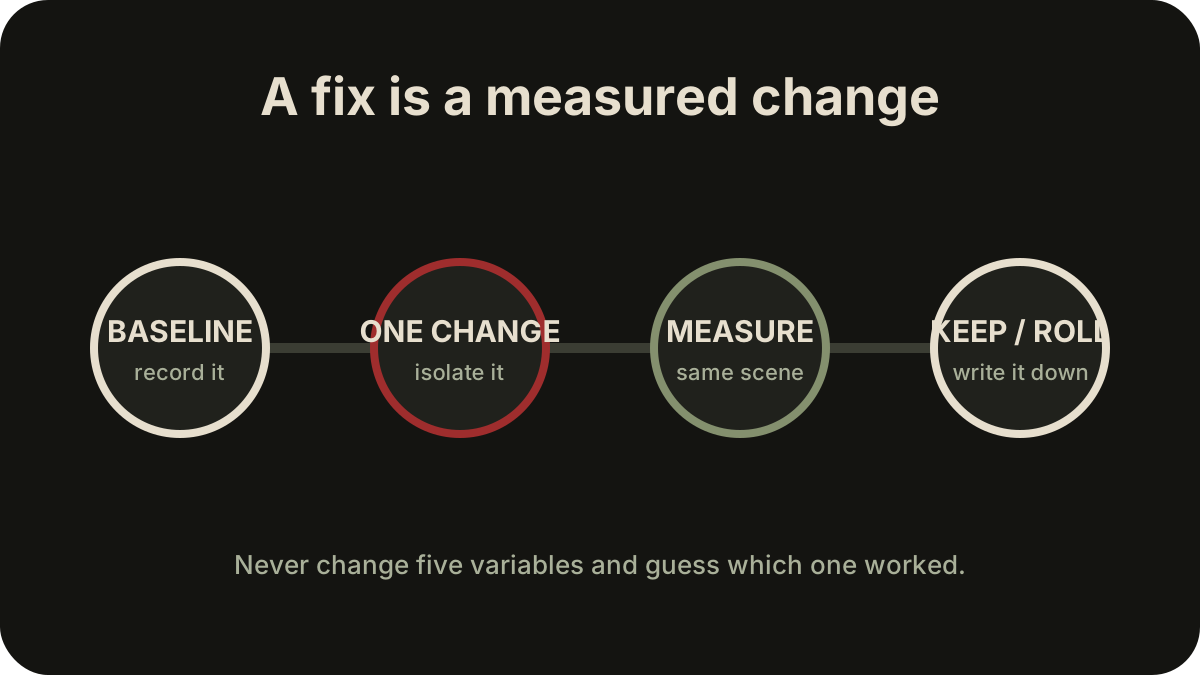
Table of contents
Confirm the supported baseline
The PC version has full controller support, recommends a gamepad, identifies DualSense and DualShock support, and exposes adjustable bindings. Those facts do not guarantee that every controller layer, glyph set, side button, or remapping utility will produce the same result.
Work from device detection outward. Do not begin by changing camera, Steam Input, in-game bindings, and third-party remapping at the same time.
Device-isolation order
- Close the game.
- Connect only the input device you intend to test.
- Confirm the operating system and launcher see that device.
- Start the game and note the first glyph set shown.
- Test one menu action, one movement action, one combat action, and camera input.
- Rebind one action in-game and confirm it survives a restart.
- Add another input layer only after the clean path works.
If the clean path fails, capture the device model, connection method, launcher input setting, and game version. “Controller broken” is not enough to distinguish detection, mapping, glyph, or gameplay behavior.
Wrong or switching button glyphs
Glyphs that change while both mouse and controller are active may be reacting to the last detected device. Test this before assuming the wrong controller profile is loaded:
- Leave the mouse still and use only the controller for ten seconds.
- Disconnect unused controllers and virtual devices.
- Compare launcher-managed input on and off as separate tests, restarting between them.
- Check whether controls work even when the displayed glyph family is wrong.
If actions work but prompts are wrong, report a glyph problem. If actions map incorrectly, report a mapping problem. They need different fixes.
Keyboard, mouse, and side buttons
In one version 1.0.6 PC environment, keyboard and controller bindings were adjustable and right-click acted as Back in the interface. Side-button or rebinding friction is a useful test prompt, not proof that a particular mouse is unsupported.
For a side button:
- Bind it directly in the game if the input is recognized.
- Leave the original key assigned until the new input is confirmed.
- Test it in a low-risk action and after restart.
- If the game does not detect it, map it to an ordinary keyboard key only through a tool you already trust and can disable.
- Document both the physical button and the resulting key.
Avoid macros that combine actions or automate timing. They obscure whether the underlying binding works and may violate platform rules.
Lock-on and camera checks
Camera and targeting friction appears in more than one launch experience, but the cause can overlap with frame pacing and device switching. Isolate it:
- Stabilize performance before evaluating camera response.
- Use one controller or one mouse, not both.
- Test lock-on in an open area against one target, then multiple targets.
- Separate “cannot acquire,” “switches target,” “breaks behind geometry,” and “camera movement is uncomfortable.”
- Record sensitivity and any inversion setting.
If the camera issue disappears with a stable frame cap, continue with PC Performance & Settings Troubleshooting. If it follows one device only, stay on the input path.
Command-menu input
Koo's command menu is part of the core combat design, not a pause-screen extra. On PlayStation, Triangle is the default example for opening the time-slowing command menu. Do not assume that button label applies to every platform or custom layout.
Your functional test is platform-neutral:
- Earn command points through a successful Just Guard.
- Open the Koo command menu.
- Confirm time slows and navigation responds once per input.
- Choose a command and return to Emma's movement.
If the menu opens but navigation repeats, skips, or changes glyph families, return to the device-isolation order before adjusting combat timing. The Combat, Parry & Koo Commands guide covers the decision loop after input is stable.
Safe report checklist
Include game version, platform, device model, wired/wireless connection, launcher input state, displayed glyph, expected action, actual action, and whether the problem survives a restart. For PC, add whether keyboard/mouse activity changes the symptom.
Check Current Version & Patch Status before repeating a workaround written for another build. Never download an unknown remapping executable just because it promises a one-click fix.
Related guides
PC Performance & Settings Troubleshooting
Isolate stutter, frame-rate, upscaler, resolution, and ultrawide symptoms with reversible checks.
Read guideCombat, Parry & Koo Commands
Turn a successful Just Guard into Koo command pressure, then reset the fight on your terms.
Read guideCurrent Version & Patch Status
Check the public launch version, specification correction, and what is not a patch number.
Read guide