
PC Performance & Settings Troubleshooting
A version-bound diagnostic workflow with hardware context and rollback points.
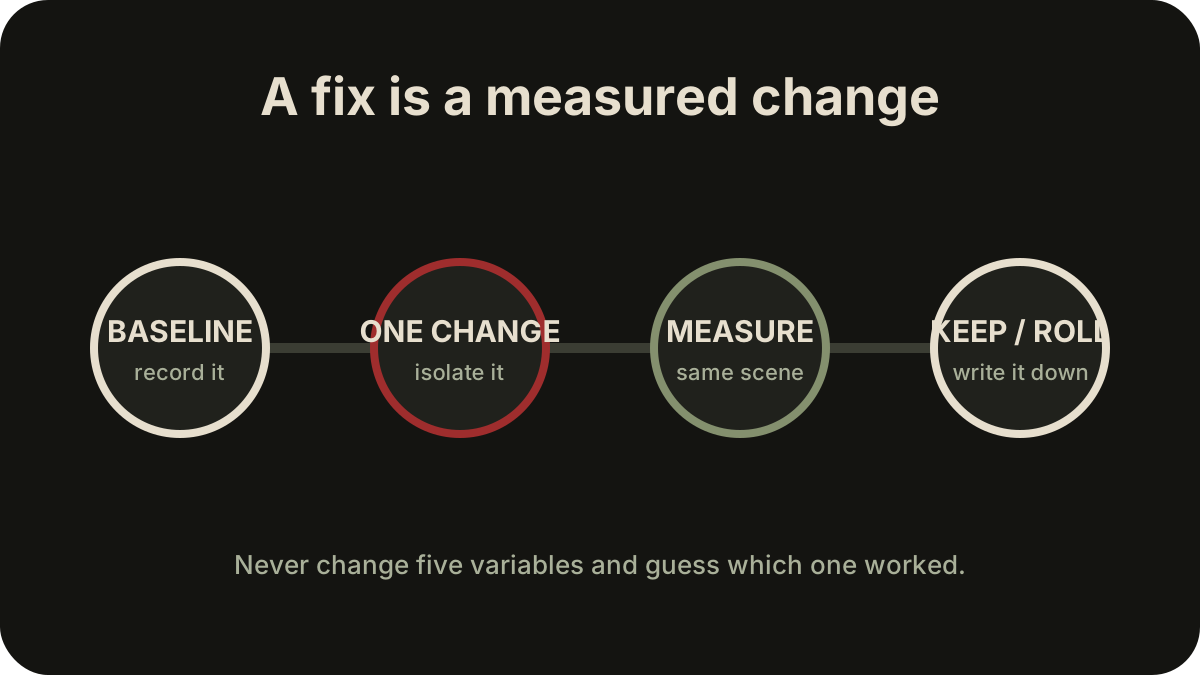
Table of contents
Start with the version boundary
This workflow covers version 1.0.6, which should be visible after the final pre-launch update. Check Current Version & Patch Status first. If your displayed version differs, record that difference before using any workaround.
The corrected PC targets are 1080p/40 on Low and 1080p/60 on Medium, both with an upscaler assumption. Read the full PC System Requirements before comparing results.
Build a reproducible baseline
Choose one scene that can be revisited without a cutscene, menu transition, or new area load. Record:
- Game version and Windows version
- CPU, GPU, GPU memory, system memory, and driver version
- Resolution, display mode, refresh rate, and frame cap
- Preset and individual settings you changed
- Upscaler and quality mode
- Whether frame generation is available and enabled
- Input device, because camera behavior can change the perceived problem
Restart the game once and confirm that the selected resolution and upscaler remain active. Then measure the same movement for the same duration. A screenshot of the settings page plus a short frame-time capture is more useful than “it feels bad.”
Symptom: uneven motion or stutter
- Separate traversal stutter from consistently low frame rate. Watch frame time, not only an average fps counter.
- Cap the frame rate to a value your machine can hold in the test scene.
- Lower one likely GPU-heavy setting or the output target, then repeat exactly.
- If the spike happens only on a first traversal or new effect, repeat the same path before comparing.
- Revert the change if the trace is not better.
A launch configuration using a Ryzen 5 5600H, RTX 3060 laptop GPU, and 16 GB of memory saw frequent drops below 60 at Medium with FSR 3 before it could retest a late performance update. Keep that result bound to its hardware and timing; it does not prove one universal cause.
Symptom: low average frame rate
Confirm the published target conditions before diagnosing. A machine near the minimum row is being compared with Low, 1080p, 40 fps, and Performance upscaling—not native 60 fps.
Use this order:
- Confirm the dedicated GPU is active.
- Confirm output resolution and render/upscaler mode.
- Choose one sustainable cap.
- Lower one setting and retest the same scene.
- Test a lower output target only after preserving the prior result.
Do not enable frame generation merely to hide an unstable base rate. Establish whether camera response and frame pacing are usable without it, then compare it as a separate variable.
Symptom: upscaler or resolution resets
An upscaler choice or display state may fail to persist in some environments. Treat this as a hypothesis on your machine:
- Change only the upscaler or quality mode.
- Apply, leave the menu, and reopen it.
- Exit normally, restart, and inspect the value again.
- Capture before/after settings if it changed.
- Restore your baseline before testing another display mode.
Do not edit configuration files you cannot restore. Do not mark them read-only unless you understand how that can prevent legitimate game updates.
Symptom: ultrawide, fullscreen, or field-of-view friction
One version 1.0.6 PC environment had no ultrawide support or field-of-view option. If your resolution is wider than 16:9:
- Test a supported 16:9 resolution as the control condition.
- Compare borderless and available display modes one at a time.
- Check whether the issue is stretching, cropping, letterboxing, UI placement, or a selection that does not persist.
- Avoid third-party patches until you understand their update, anti-cheat, and rollback risks.
This Wiki does not publish an unofficial ultrawide patch at launch.
Symptom: the camera feels worse than the frame rate suggests
Disable competing explanations. Confirm a stable frame cap, then test camera sensitivity and lock-on behavior with one input device. Camera, targeting, and lock-on friction appeared in more than one launch environment. That identifies a useful test; it does not establish that every platform behaves identically.
Continue in Controls & Input Troubleshooting if the symptom changes when you switch devices or glyph sets.
Report a result that can be used
A useful technical report contains version, hardware, driver, exact display/upscaler settings, a repeatable location or action, expected result, actual result, and whether a restart changes it. Remove personal paths and account information from screenshots.
Keep the smallest reversible change that measurably improves the same test. Roll back anything that does not. That discipline survives future patches better than a copied “optimized settings” bundle.
Related guides
PC System Requirements
Compare the published 1080p/40 and 1080p/60 PC targets, storage, memory, GPUs, and upscaler assumptions.
Read guideControls & Input Troubleshooting
Separate controller detection, glyph, rebinding, mouse, menu, camera, and lock-on problems.
Read guideCurrent Version & Patch Status
Check the public launch version, specification correction, and what is not a patch number.
Read guide